Vibe-Coding a Wi-Fi TV Remote From My Couch (When Mine Died)
Jun 9, 2026
The problem
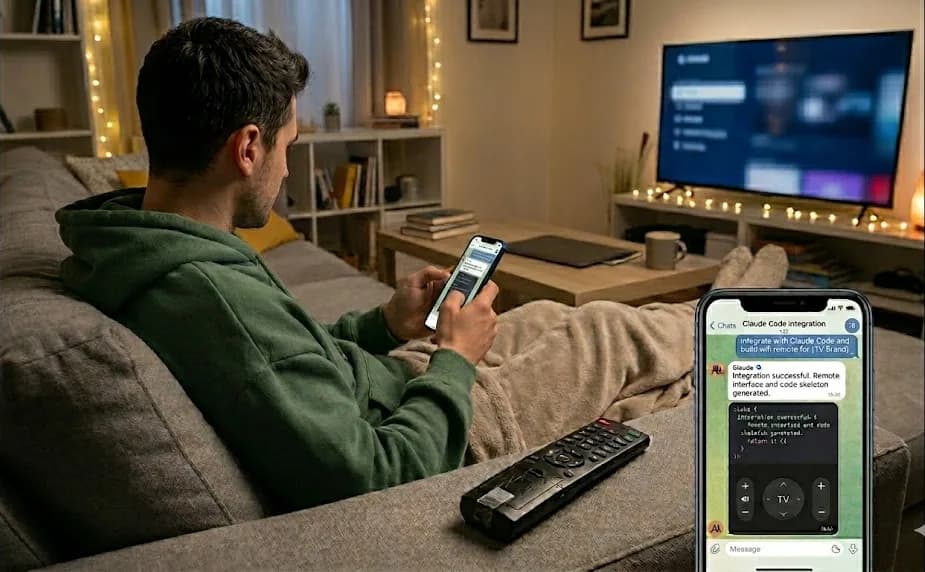
My Xiaomi Mi TV Stick remote died on a Sunday evening. The official "use your phone instead" apps either wouldn't pair, or wanted accounts and a working remote to bootstrap the pairing in the first place — the exact thing I didn't have.
So instead of buying a replacement, I vibe-coded my own remote from the couch. The result is a little web app I open in Safari that gives me a full touch remote — power, D-pad, a volume slider, media keys, a search box, and one-tap app launching — all over my home Wi-Fi. Here's how it works and the three problems that turned out to be more interesting than the UI.
The key insight: Android TV speaks ADB over the network
Android TV boxes are just Android. And Android has ADB — the Android Debug Bridge — which, once you flip on Developer options → USB debugging, listens on TCP port 5555. Anything you can do with a remote, you can do with an ADB shell command:
# input keyevents are the whole remote, really
device.shell("input keyevent KEYCODE_DPAD_UP")
device.shell("input keyevent KEYCODE_WAKEUP")    # turn it ON over Wi-Fi
device.shell("monkey -p com.netflix.ninja -c android.intent.category.LEANBACK_LAUNCHER 1")
I used adb-shell, a pure-Python ADB implementation, so there's no need to install the Android platform-tools binary. It generates an RSA keypair, and the first time you connect, the TV shows an "Allow USB debugging?" prompt. Approve it once (check Always allow) and the key is trusted forever. Wrap that in a tiny Flask server and you have a remote any browser can drive.
The nicest part: KEYCODE_WAKEUP turns the box on over the network — as long as it's in standby, its Wi-Fi stays alive and reachable. The thing my phone apps couldn't reliably do, a one-line shell command does.
Problem 1: the IP keeps changing
DHCP hands the box a new IP now and then, which would break a hardcoded address. The obvious fix is to identify the box by its MAC and resolve the current IP at connect time.
There was a wrinkle: my server runs inside WSL2, which sits behind a NAT and has no layer-2 view of the 192.168.x.x LAN — so it can't ARP for the box itself. But the Windows host can. So I resolve MAC → IP by reading the host's ARP table across the WSL interop boundary:
def _arp_lookup(mac):
    want = mac.lower().replace(":", "-")
    out = subprocess.run(["arp.exe", "-a"], capture_output=True, text=True).stdout
    for line in out.splitlines():
        parts = line.split()
        if len(parts) >= 2 and parts[1].lower() == want:
            return parts[0]            # the current IP for that MAC
    return None
A ping to the last-known IP refreshes the ARP entry; if the IP has moved, a quick subnet sweep repopulates the table. The controller caches the result and self-heals on the next connection failure. DHCP can do whatever it likes.
Problem 2: ADB sockets aren't thread-safe
The remote polls the box's power state every few seconds, and the volume slider fires its own requests. Under Flask's threaded server, two requests would occasionally hit the single shared ADB socket at the same time and corrupt it — the connection would die with a cryptic select() error.
The fix is boring and correct: serialize all device access behind a re-entrant lock.
def key(self, name):
    code = KEYMAP.get(name, name)
    with self._lock:            # adb-shell is not thread-safe
        self._ensure()
        self.dev.shell(f"input keyevent {code}")
    return code
An RLock (rather than a plain Lock) matters here because higher-level operations call lower-level ones — set_volume() reads the current level and then calls key() in a loop, all under the same lock.
Speaking of volume: there's no clean "set absolute volume" command on this device, but each KEYCODE_VOLUME_UP/DOWN moves exactly one step. So the slider reads the current level out of dumpsys audio, computes the delta, and sends precisely that many key presses. A slider built out of button mashing — but it feels native.
Problem 3: iOS Safari has no vibration API
I wired up navigator.vibrate() for haptic feedback on every tap... and felt nothing, because iOS Safari doesn't implement the Vibration API. The workaround is a genuinely cursed little trick: a hidden <input type="checkbox" switch> element. Toggling a switch control fires a real system haptic on iOS 17.4+, so I trigger it programmatically on every button press:
<label id="hap" for="hapcb" aria-hidden="true"></label>
<input id="hapcb" type="checkbox" switch tabindex="-1">
function buzz() {
  if (navigator.vibrate) navigator.vibrate(8); // Android
  if (hapLabel) hapLabel.click();              // iOS 17.4+ haptic hack
}
Tying it off
The Flask app is reachable from my phone — even when I'm not home — over Tailscale, reverse-proxied by Caddy at a private *.ts.net hostname. The tailnet is the trust boundary, so there's no auth to fumble with from the couch.
What started as "my remote died" turned into a tidy tour through ADB internals, NAT-crossing ARP lookups, thread-safety, and an undocumented iOS haptic hack. Total hardware cost: zero. The replacement remote is still in its Amazon cart.
The whole thing is a couple hundred lines of Python and one HTML file. Sometimes the best utility apps are the ones you vibe-code from the couch because the alternative is standing up to find the remote.